Secure a VPS: A Practical Checklist
Table of Contents
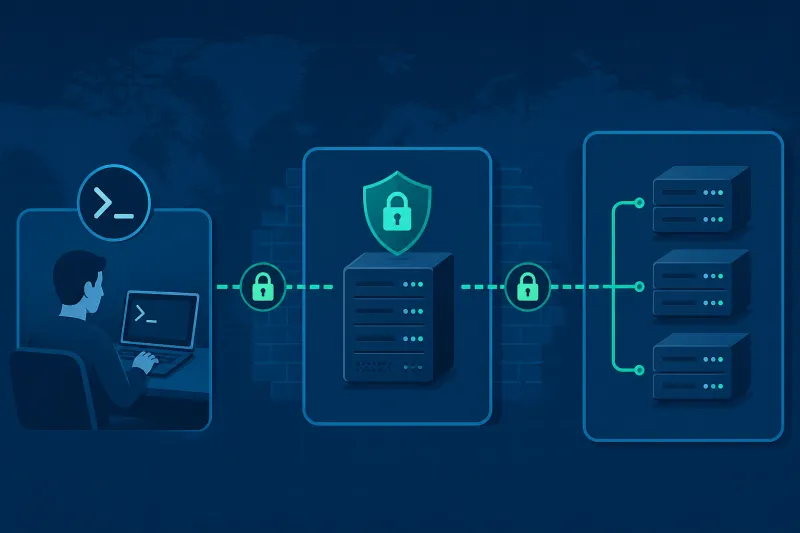
A new Ubuntu VPS is reachable from the entire internet within minutes of creation. Scanners will find SSH, probe common ports, and try credential stuffing whether you are ready or not. Hardening is not a compliance ritual—it is the minimum so you can run WireGuard or any other service without becoming an easy foothold.
This checklist is ordered for a fresh Ubuntu 22.04 or 24.04 LTS cloud host (including DigitalOcean Droplets). Apply it before you expose application ports. You can finish the baseline in under an hour on a single server.
The goal is a boring, defendable host: key-based SSH, least privilege, firewall default deny, timely patches, basic intrusion throttling, and enough logging to investigate later.
What You'll Learn
- A prioritized order of operations that avoids lockouts
- SSH, user, and sudo baseline controls
- Firewall and provider security group alignment
- Automatic security updates and package hygiene
- Fail2Ban, time sync, and logging essentials
- What to postpone until after the VPN or app is up
Before You Change Anything
- Confirm you can log in with an SSH key.
- Open a second SSH session before restarting
sshdor enabling UFW. - Note the provider console/serial access path (DigitalOcean Recovery/Console) in case you lock yourself out.
- Record the server’s public IPv4 (and IPv6 if enabled).
1. Patch the System First
sudo apt update
sudo apt upgrade -y
sudo reboot   # if the kernel updated
Install unattended upgrades:
sudo apt install -y unattended-upgrades
sudo dpkg-reconfigure -plow unattended-upgrades
Confirm:
cat /etc/apt/apt.conf.d/20auto-upgrades
Security updates should install automatically. Reboots after kernel updates still need a maintenance habit—unattended upgrades will not always reboot for you unless you configure that explicitly.
2. Create a Non-Root Admin User
sudo adduser deploy
sudo usermod -aG sudo deploy
Copy authorized keys:
sudo rsync --archive --chown=deploy:deploy /root/.ssh/ /home/deploy/.ssh/
Log in as deploy in a new session and verify sudo -v works before disabling root SSH login.
3. Harden SSH (Minimum Viable)
Edit /etc/ssh/sshd_config or add /etc/ssh/sshd_config.d/99-hardening.conf:
PermitRootLogin no
PasswordAuthentication no
KbdInteractiveAuthentication no
PubkeyAuthentication yes
X11Forwarding no
AllowTcpForwarding no
MaxAuthTries 3
LoginGraceTime 30
AllowUsers deploy
Validate and reload:
sudo sshd -t
sudo systemctl reload ssh
Only set AllowUsers after your admin account works. If you use cloud-init injected keys on root only, migrate keys first.
Prefer ed25519 keys:
ssh-keygen -t ed25519 -a 100 -f ~/.ssh/id_ed25519_vps
4. Configure the Host Firewall (UFW)
sudo apt install -y ufw
sudo ufw default deny incoming
sudo ufw default allow outgoing
sudo ufw allow OpenSSH
sudo ufw enable
sudo ufw status verbose
Add application ports only when needed. For WireGuard later:
sudo ufw allow 51820/udp comment 'WireGuard'
5. Align Provider Firewalls
On DigitalOcean, a Cloud Firewall can restrict inbound traffic before it hits the Droplet. Mirror the host policy:
- Allow TCP 22 from your admin IP CIDRs when practical
- Allow VPN UDP when you deploy WireGuard
- Deny everything else inbound
Misaligned layers cause “mysterious” timeouts. Treat provider firewall and UFW as one design.
6. Disable Unused Services
systemctl list-units --type=service --state=running
Stop and disable what you do not need. Fresh Ubuntu cloud images are relatively lean; still remove leftover agents you will not use. Every listening socket is inventory.
sudo ss -tulpn
7. Configure Time Synchronization
Correct time matters for logs, TLS, and correlating incidents:
timedatectl status
sudo timedatectl set-ntp true
Ubuntu 24.04 typically uses systemd-timesyncd. Ensure it is active.
8. Install Fail2Ban for SSH
sudo apt install -y fail2ban
sudo cp /etc/fail2ban/jail.conf /etc/fail2ban/jail.local
Create /etc/fail2ban/jail.d/sshd.local:
[sshd]
enabled = true
port = ssh
filter = sshd
maxretry = 5
findtime = 10m
bantime = 1h
ignoreip = 127.0.0.1/8 ::1 YOUR.ADMIN.IP
sudo systemctl enable --now fail2ban
sudo fail2ban-client status sshd
Fail2Ban complements key-only SSH; it does not replace it. It reduces log noise and slows password scanners if something re-enables passwords by mistake.
9. Kernel and Network Sysctl Baseline
Create /etc/sysctl.d/99-hardening.conf:
net.ipv4.conf.all.rp_filter = 1
net.ipv4.conf.default.rp_filter = 1
net.ipv4.icmp_echo_ignore_broadcasts = 1
net.ipv4.conf.all.accept_redirects = 0
net.ipv4.conf.default.accept_redirects = 0
net.ipv4.conf.all.send_redirects = 0
net.ipv4.conf.all.accept_source_route = 0
net.ipv6.conf.all.accept_redirects = 0
net.ipv6.conf.default.accept_redirects = 0
Apply:
sudo sysctl --system
If this host will route VPN traffic, you will later enable net.ipv4.ip_forward=1. Forwarding is a deliberate exception, not a default for non-router hosts.
10. Shared Memory and Temporary Directories (Optional Tightening)
For multi-user or higher assurance hosts, review /etc/fstab options for /tmp (noexec,nodev,nosuid) carefully—some installers break with noexec on /tmp. Apply only if you understand application needs.
11. Logging and Retention
Ensure rsyslog or journald is healthy:
journalctl -u ssh -n 20 --no-pager
sudo journalctl --disk-space
Decide where logs live. For a single VPS, persistent journal plus occasional off-box copy is a start. For fleets, ship to a central store. Do not disable auth logging to “reduce noise.”
12. Swap and Resource Sanity
Small Droplets can OOM under spikes. Check:
free -h
Add swap if you have less than 2 GB RAM and expect bursts—but treat swap as a safety net, not capacity planning.
13. Automatic Reboot Policy (Decide Explicitly)
Either:
- Schedule maintenance windows and reboot after kernel updates, or
- Configure unattended-upgrades to reboot when required (
Automatic-Rebootsettings)
Silent forever-uptime with an outdated kernel is not a security posture.
14. Backup and Recovery Path
Before production data exists:
- Snapshot the Droplet after baseline hardening
- Store WireGuard private keys and SSH keys outside the VPS with restricted access
- Document rebuild steps (cloud-init or your provisioning tool)
Security without recovery still fails the business test.
15. Application and VPN Ports Last
Only after SSH, firewall, updates, and users are sane:
- Install WireGuard or OpenVPN
- Open the specific UDP/TCP ports required
- Re-check
ss -tulpnand UFW status
Do not open 0.0.0.0/0 to management UIs “temporarily.” Temporary rules become permanent.
Hardening Checklist (Copy/Paste)
-
apt update && apt upgradecompleted - Unattended security upgrades enabled
- Non-root sudo user created; key auth verified
- Root SSH login disabled; passwords disabled
- UFW default deny; SSH allowed; enabled
- Provider firewall matches host policy
-
ss -tulpnreviewed; extras disabled - NTP/time sync OK
- Fail2Ban jail for sshd enabled; admin IP ignored
- Baseline sysctl applied
- Snapshot or rebuild notes stored
- Only required app/VPN ports open
Day-Two Habits That Keep the Baseline Intact
Hardening decays when the next install quietly opens ports or adds users.
After every package that listens on the network, re-run:
sudo ss -tulpn
sudo ufw status numbered
After every staffing change, edit authorized_keys and AllowUsers. Remove keys the same day someone loses access—not during the next audit.
After kernel updates, reboot in a maintenance window and confirm SSH, UFW, WireGuard, and Fail2Ban all returned:
systemctl is-active ssh ufw fail2ban
systemctl is-active wg-quick@wg0   # if installed
Monthly, skim auth logs for unexpected successes:
sudo journalctl -u ssh --since '30 days ago' | grep -i accepted | tail -n 50
Unexpected accepted logins are incident signals. Pure failure noise is normal on port 22; successes from unknown IPs are not.
Minimal Monitoring Without a Platform
You do not need a full observability stack on day one. You do need signals:
- DigitalOcean bandwidth graphs for egress VPN nodes (sudden spikes)
- Disk free space (
df -h) before logs fill the disk and hide evidence fail2ban-client status sshdafter you expose SSH widely- A calendar reminder for domain and TLS renewals if any HTTPS lands on the host
When you grow past a handful of servers, centralize logs and inventory. Until then, boring shell checks beat unread dashboards.
Secrets and Access Hygiene
- Store SSH private keys and WireGuard private keys outside the VPS backups you share casually
- Prefer agent forwarding only when necessary; prefer ProxyJump with explicit configs
- Never put production private keys in chat, tickets, or world-readable home directories
- Rotate keys when a laptop is lost, not only when a CVE drops
A hardened sshd with a leaked laptop key is still a compromised host. Physical and endpoint security are part of the VPS checklist whether you like it or not.
Best Practices
- Prefer allowlisting admin SSH by source IP at the cloud firewall when your IP is stable
- Use separate SSH keys per operator; revoke by removing authorized_keys lines
- Keep sudoers lean; avoid NOPASSWD unless automation requires it and is locked down
- Re-run
ss -tulpnafter every major install - Treat provider API tokens and SSH keys as production secrets
- Rebuild from known-good images periodically instead of endless snowflake patching when drift grows
- For VPN egress nodes, monitor bandwidth—compromise often shows up as traffic anomalies
Common Mistakes
- Enabling UFW before allowing SSH
- Disabling password auth before confirming key login in a second session
- Hardening SSH then never opening provider firewall for UDP VPN ports
- Leaving
PermitRootLogin yesbecause cloud-init made it convenient - Installing Fail2Ban but not whitelisting your own IP, then testing from that IP
- Calling the host “secure” because a web scanner is clean while SSH passwords remain on
- Forwarding enabled on hosts that are not routers/VPN gateways
- No offline copy of recovery procedure
FAQ
Is this checklist enough for compliance frameworks?
It is a practical baseline for self-hosted infrastructure, not a SOC 2 evidence package. Frameworks need policies, access reviews, and continuous control proof beyond a single host guide.
Should I change the SSH port?
Moving off port 22 reduces noisy logs but is not strong security. Key-only auth, allowlists, and Fail2Ban matter more. If you change ports, update UFW and cloud firewalls together.
Do I need SELinux or AppArmor tuning?
Ubuntu ships AppArmor. Keep it enabled. Custom profiles are advanced work—do not disable AppArmor “to make installs easier” on production VPN hosts.
What about IPv6?
If IPv6 is enabled on the VPS, firewall it. UFW IPv6 support should stay on (IPV6=yes in /etc/default/ufw). An open IPv6 stack with a locked-down IPv4-only mental model is a classic hole.
Can I skip Fail2Ban with key-only SSH?
You can, but Fail2Ban is cheap insurance against misconfigurations and reduces brute-force log spam. Keep it unless you have an equivalent control.
How often should I revisit hardening?
After every major role change (new public service), quarterly for sysctl/SSH review, and immediately after staff turnover for authorized_keys cleanup.
Summary
Secure a VPS by working in a safe order: patch, admin user, SSH keys only, firewall, provider rules, disable unused listeners, time sync, Fail2Ban, sysctl baseline, then application ports. Verify each control before tightening the next so you do not lock yourself out.
A hardened Ubuntu host will still be scanned. The difference is whether those scans become a problem or background noise.
If you want to automate VPN server deployment instead of configuring everything manually, TunnelFleet helps you provision and manage VPN infrastructure on your own cloud provider with minimal manual setup.
Share this article
Practical guides on VPN infrastructure, server automation, and self-hosted networking from the TunnelFleet team.
View all articles by TunnelFleet Editorial →